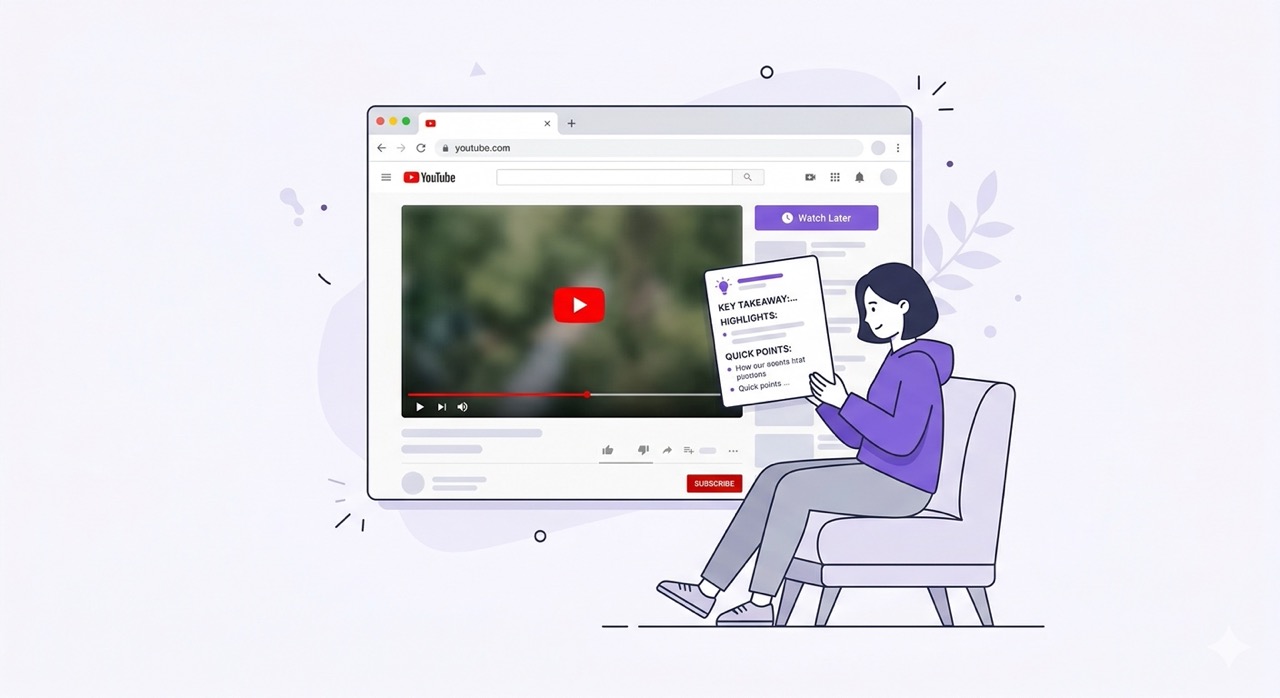
You open a YouTube tutorial. It's 47 minutes long. You need just one thing from it — maybe a specific command, an exact recipe step, or the single answer to your question. So you start watching. You skip ahead. You rewind. Forty minutes later, you've watched the whole thing anyway.
Sound familiar? You're not alone. The average YouTube video watched for learning takes 3–5x longer to consume than reading the same information would. Not because video is a bad format — but because most people have no efficient way to navigate it.
This guide covers four practical methods for summarizing YouTube videos, from manual to fully automated. By the end, you'll know exactly which approach saves the most time — and why the AI-powered method delivers results in under 60 seconds.
Why Summarizing YouTube Videos Saves You Hours
The numbers tell the story clearly. A 30-minute YouTube video contains roughly 4,500–6,000 words of spoken content. Reading the same information in text form takes 15–20 minutes. An AI-generated summary of that same video takes under 60 seconds to create and 2–3 minutes to read.
That's a 10–15x speed improvement — without losing the key information.
Beyond raw speed, video summaries unlock several advantages:
Decide faster. Know in 30 seconds whether a video is actually worth your full attention.
Navigate smarter. Jump directly to the sections most relevant to you using timestamped summaries.
Retain more. Reviewing key points after watching reinforces memory far better than rewatching.
Share easily. Distill a 2-hour interview into a readable briefing for your team.
Study efficiently. Structured text is easier to annotate, highlight, and reference later.
The question is never whether to summarize — it's which method to use.
Method 1 — Manual Note-Taking (The Traditional Approach)
The classic method: watch the video, pause, write notes, repeat. Done well, this produces deep comprehension. Done poorly, it's just rewatching the video while your hand cramps.
How it works:
Open the video and have a notes document ready alongside it
Watch in chunks of 3–5 minutes, pausing to write key points
Use your own words, not transcriptions
Review and restructure your notes after finishing
When it works best: Academic lectures, technical deep-dives, or any content where you need genuine understanding rather than a quick overview. A medical student studying a biochemistry lecture will get more from manual notes than from any automated summary.
The honest downside: For a 30-minute video, expect to spend 60–90 minutes on the full watch-and-note cycle. It's the highest-quality method — and the slowest by far. For most use cases in 2025, there are significantly faster alternatives.
Method 2 — YouTube Chapters and Timestamps
YouTube's built-in chapter feature is underused and genuinely useful. If a creator has added chapters to their video, you can see the full structure of the content before watching a single second.
How to access it:
Look for the chapter markers in the video progress bar (small white dots)
Click the three-dot menu on the video → "Open transcript"
Scan the chapter titles in the description below the video
Click any chapter title to jump directly to that section
When it works best: Tutorials, how-to videos, and any creator who structures their content well. It's the fastest native option YouTube offers.
The honest downside: Chapters only exist if the creator added them — which many don't. Even when they do, chapter titles are often vague ("Part 2", "More details") and give you little real information about what's actually covered. You still need to watch to know what's valuable.
Method 3 — Copying the Transcript Manually
Every YouTube video with captions has a transcript you can access for free. This is a hidden gem that most viewers never use.
How to access the YouTube transcript:
Open any YouTube video
Click the three-dot menu (•••) below the video
Select "Open transcript" from the dropdown
A panel opens on the right with the full text and timestamps
You can then select all the text, copy it, and paste it into ChatGPT, Google Docs, or any text editor for further processing.
When it works best: When you want to search for a specific word or phrase in the video content, or when you need the raw text for translation or accessibility purposes.
The honest downside: The raw YouTube transcript is nearly unreadable. It has no punctuation, no paragraph breaks, and no sentence structure. Auto-generated captions also include filler words ("um", "you know", "like") that make the text dense and difficult to skim. You'll still spend significant time cleaning and organizing the output before it becomes useful.
Method 4 — AI-Powered Summarization (The Fastest Method)
This is where the 60-second promise becomes real. AI summarization tools take the raw transcript of a video and process it through a large language model to produce structured, readable, actionable summaries — automatically.
No pausing. No copying. No cleaning up messy captions. You open the video, click one button, and read the result.
How it works technically:
The tool extracts the video's transcript (or uses the audio if no captions exist)
The transcript is sent to an AI model (GPT-4, Gemini 2.5, or Claude)
The model identifies the key points, structures them logically, and writes a clean summary
You receive the summary in seconds, formatted and ready to read
What a good AI summary includes:
A concise overview of the video's main argument or purpose
The key points in logical order (not just chronological)
Timestamps linking each point back to the exact moment in the video
Optional: comment sentiment analysis, clean transcript, and a chat interface to ask follow-up questions
The AI Summary Chrome extension handles all of this directly inside YouTube — no copying, no new tabs, no separate tools. Open any YouTube video, click the "Summarize ✨" button that appears in your browser, and choose your summary depth: Short (3–5 key points), Normal (structured overview), or Long (deep-dive analysis). The result appears in seconds.
"I used to spend 45 minutes watching tutorial videos before I knew if they were worth my time. Now I read the AI summary first and watch only the sections I actually need."
Comparison: All 4 Methods Side by Side
Method | Time required | Summary quality | Works on long videos | Best for |
|---|---|---|---|---|
Manual note-taking | 60–90 min | Very high | Yes (exhausting) | Deep academic study |
YouTube chapters | 5–10 min | Low | Yes | Quick content scan |
Copy transcript | 15–25 min | Medium (raw) | Difficult | Text search, accessibility |
AI summarization | < 60 sec | High | Yes, natively | Everything — fast |
For the vast majority of everyday YouTube use — learning, research, staying informed, reviewing tutorials — AI summarization wins on every practical dimension except depth of personal comprehension, where manual notes still have an edge.
Step-by-Step: How to Use an AI Summarizer on YouTube
If you've never used an AI summarizer before, here's the exact workflow using the AI Summary Chrome extension:
Step 1 — Install the extension Go to the Chrome Web Store and search for "AI Summary", or visit aisummary.site and click "Add to Chrome." The installation takes under 30 seconds and requires no account to get started.
Step 2 — Open any YouTube video Navigate to YouTube and open any video you want to summarize. The AI Summary panel appears automatically in the YouTube interface — it integrates directly into the page rather than opening a separate window.
Step 3 — Click "Summarize ✨" Click the Summarize button. Choose your preferred detail level:
Short — 3 to 5 bullet points capturing the absolute core of the video
Normal — A structured overview with the main sections and key conclusions
Long — A detailed breakdown covering all the major points, ideal for lectures and technical content
Step 4 — Read, navigate, and export Your summary appears in seconds. Each point is linked to the exact timestamp in the video, so you can click any item to jump directly to that moment. When you're done, export the summary to Notion, Google Docs, or download it as a PDF, DOC, or TXT file.
Total time from opening the video to having a usable summary: under 60 seconds.
5 Practical Use Cases for Video Summaries
1. Research and information gathering Instead of watching 10 videos on a topic and taking your own notes, generate summaries of all 10 and read them in sequence. Identify the 2–3 most valuable videos and watch only those in full. Time saved: several hours.
2. Deciding whether a video is worth watching Generate a Short summary before committing to a 40-minute video. If the summary covers what you need, you have your answer without watching. If it opens more questions, you know the full video is worth your time.
3. Reviewing a video you already watched Instead of rewatching a 2-hour conference talk to find one specific point, generate a timestamped summary and jump directly to the relevant section.
4. Studying and exam preparation Turn a YouTube lecture playlist into structured study notes. Export each summary to your Notion or Google Docs knowledge base and review them alongside your course materials.
5. Sharing insights with a team Found a relevant industry video? Generate a summary and share the text with colleagues instead of forwarding a link and hoping they'll find time to watch.
Frequently Asked Questions
Does AI summarization work on all YouTube videos? It works on any video that has captions — either manually added or auto-generated by YouTube. The vast majority of YouTube videos (estimated at over 90%) have auto-generated captions in at least one language, so coverage is very broad. Videos without any transcript (rare) may not be supported.
How accurate are AI summaries? Accuracy depends on the quality of the transcript and the AI model being used. For well-produced videos with clear speech, accuracy is very high. For videos with heavy accents, technical jargon, or poor audio, accuracy may decrease. AI Summary uses a hybrid of ChatGPT, Gemini 2.5, and Claude to get the best available result.
Can I get a summary in a different language than the video? Yes. AI Summary auto-detects the video's language and can output the summary in any of 50+ supported languages. You can watch a Japanese tutorial and receive the summary in English, Ukrainian, or Spanish.
Will it work on very long videos? Yes. Thanks to Gemini 2.5's large context window, AI Summary handles videos of 2 hours or more without losing context or accuracy — an area where many competing tools fail.
Is it free to use? AI Summary offers a free tier that covers core summarization features. Advanced capabilities including unlimited summaries and the most powerful AI models are available in the Pro plan.
Does it slow down YouTube or affect video performance? No. The extension adds a panel to the YouTube interface but does not affect video playback, loading speed, or any other part of the YouTube experience.
Conclusion
Four methods, one clear winner for most situations. Manual notes remain the gold standard when depth of comprehension is the priority. But for research, learning, decision-making, and staying informed — where time is the constraint — AI summarization is a decade's worth of improvement compressed into a single button click.
The 60-second promise isn't a marketing exaggeration. It reflects a genuine shift in how efficiently you can extract value from video content in 2025.
Ready to try it? Install the AI Summary Chrome extension for free at aisummary.site — no signup required. Open the next YouTube video you would have spent 30 minutes watching, and see what a 60-second summary looks like.
Next read: Best YouTube Summarizer Tools in 2025: Tested & Ranked
Related: How to Take Better Notes from YouTube Videos · 5 Chrome Extensions That Make YouTube Useful for Learning