There is a specific kind of productivity loss that happens so gradually you barely notice it until you add it up. You watch a useful YouTube video. You want to save the key points. So you open Google Docs, create a new document, switch back to YouTube, pause the video, type a rough summary from memory, realize you missed something important, switch back to YouTube, rewind thirty seconds, switch back to Docs, continue typing. The video is paused. Your train of thought is interrupted. The notes you produce are a compromise between what you wanted to capture and what the friction of the process allowed you to capture.
Multiply this by every YouTube video you watch for work or learning in a month. The cumulative time is significant. The cumulative quality loss — all the points that did not make it into the notes because the process was too cumbersome — is more significant still.
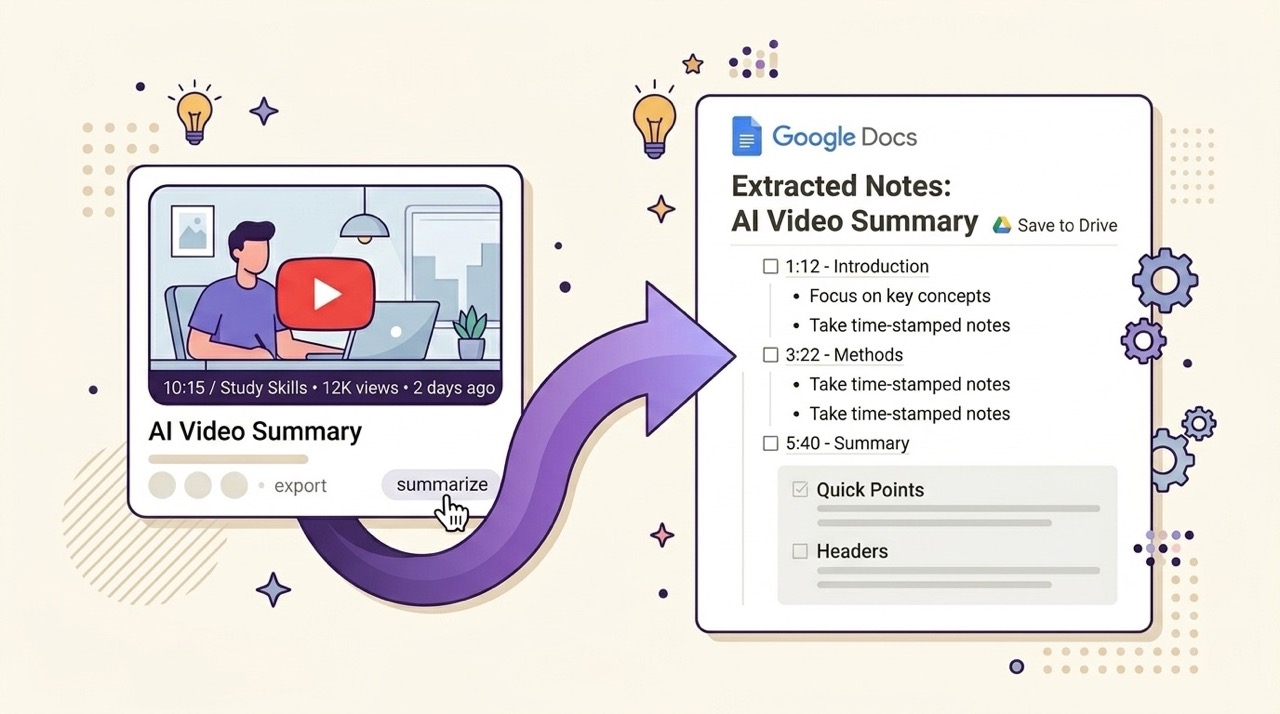
One-click Google Docs export from AI Summary eliminates this entirely. Open any YouTube video, generate a summary, click Export, select Google Docs. A new document appears in your Drive with the full structured summary, the video metadata, and the timestamped references — formatted, ready to read, and permanently saved. Total time from video to document: under two minutes. Manual effort: one click after the summary generates.
This guide covers the exact setup process, what the exported document contains, what it looks like in Google Docs, and how to organize your growing collection of YouTube documents in Drive so they compound into a useful knowledge base rather than a pile of disconnected files.
The Problem with Manual Copy-Paste
Before covering the automated workflow, it is worth being specific about why the manual approach fails — not just in terms of time, but in terms of what it does to the quality and completeness of what you capture.
Manual copy-paste from YouTube to Google Docs has three distinct failure modes.
The friction filter. When saving knowledge requires significant effort, you apply an informal threshold: only videos that seem clearly worth the effort get saved. Videos that might be valuable — the ones you are less certain about, the ones from unfamiliar creators, the ones on topics adjacent to your main focus — do not clear the bar. The result is a Google Drive folder that reflects what you already knew was important rather than what turned out to be important. The unexpected captures — the video you saved on a whim that contained exactly the framework you needed six months later — never happen because the friction filters them out before you can discover their value.
The quality degradation under friction. When the process of saving is effortful, you compress. You write shorter notes than you intended. You skip sections that seemed secondary in the moment but turn out to be important later. You stop taking notes when your patience runs out rather than when you have captured everything valuable. The notes you end up with are a degraded representation of the video's content — not because you did not understand it, but because the process of capturing it was too cumbersome to complete properly.
The formatting problem. Notes taken manually from video are typically unformatted — a stream of bullet points or sentences without the logical structure that makes notes useful for review. Reformatting them into a usable document requires additional time after the fact, which most people do not invest, leaving a folder of notes that are difficult to navigate and reference.
One-click export produces a properly formatted document without any of these compromises. The friction filter disappears because the cost of saving is negligible. Quality degradation under friction disappears because you are not manually transcribing anything. The formatting problem disappears because the export produces a structured document automatically.
Setting Up the Google Docs Integration
The Google Docs export in AI Summary uses Google's standard OAuth authorization — the same process used by any tool that integrates with Google Drive. Setup is a one-time process that takes approximately 60 seconds.
Step 1 — Install AI Summary. If you have not already installed the extension, go to aisummary.site or search "AI Summary" in the Chrome Web Store. Click Add to Chrome. Installation completes in under 30 seconds with no account required.
Step 2 — Open any YouTube video. Navigate to YouTube and open any video. The AI Summary panel is visible within the YouTube interface automatically.
Step 3 — Generate a summary. Click Summarize ✨ and wait for the summary to generate. You need to have a summary generated before the export option becomes available.
Step 4 — Click Export → Google Docs. In the AI Summary panel, click the Export button. Select Google Docs from the export options menu.
Step 5 — Authorize the connection. The first time you select Google Docs export, a Google authorization window opens. Sign in with your Google account if prompted, and grant AI Summary permission to create files in your Google Drive. The permission requested is specifically for file creation — the extension does not request read access to your existing Drive content.
Step 6 — Done. Authorization completes in seconds. A new Google Doc is created in your Drive and a confirmation link appears in the AI Summary panel. Click the link to open the document immediately, or find it in your Google Drive later.
All subsequent exports require only Step 4 — clicking Export → Google Docs. The authorization persists until you revoke it through your Google account settings.
Step-by-Step: From YouTube Video to Google Doc in Under 2 Minutes
Here is the complete workflow from opening a video to having a finished Google Doc, timed precisely.
0:00 — Open the YouTube video. Navigate to the video you want to capture. The AI Summary panel loads alongside the video automatically.
0:05 — Click Summarize ✨. Select Normal mode for a standard informational video. Long mode for a lecture or technical tutorial where detail matters. Short mode if you only need the core points.
0:45 — Summary generates. For a 30-minute video, Normal mode generates in approximately 40 to 50 seconds. For longer videos, processing time increases proportionally but remains under two minutes for most content.
0:50 — Review the summary briefly. Scan the output to confirm it covers the content you expected. Use the timestamped links to spot-check specific sections against the video if accuracy is critical for your use case.
1:00 — Click Export → Google Docs. One click. If authorization is already set up, the export begins immediately.
1:10 — Export completes. A confirmation appears in the AI Summary panel with a direct link to the new Google Doc.
1:15 — Open the document. Click the link. Your Google Doc is open, formatted, and ready.
Total elapsed time: approximately 75 seconds for a 30-minute video. For longer videos, add the additional processing time — a 90-minute lecture takes approximately two and a half to three minutes total from click to finished document.
What the Resulting Google Doc Contains
Understanding exactly what gets exported helps you plan how you will use the documents and how to structure your Drive folder system around them.
A standard AI Summary export to Google Docs contains the following elements, in order.
Document title matches the YouTube video title exactly, making the document immediately identifiable in your Drive and in search results.
Video metadata block at the top of the document includes the channel name, the YouTube URL as a clickable hyperlink, and the export date. This metadata ensures you can always return to the source video and that the document is identifiable in context even if it gets moved or shared.
Structured summary content forms the main body of the document. The format reflects the summary depth you selected. Normal mode produces clearly labeled sections with the key points from each part of the video organized logically. Long mode produces a comprehensive breakdown with sub-points, supporting evidence, and the logical flow of the argument. Both formats use Google Docs native heading and paragraph styles — the content looks like it was written directly in Docs rather than imported from an external tool.
Timestamped references appear within the summary content where the AI has linked specific points back to moments in the video. These are formatted as text references — for example, "[12:34]" — that you can use to navigate back to the relevant video section if you need to verify or expand on a specific point.
The document is immediately usable without any reformatting. You can begin adding your own notes, highlights, and comments from the moment it opens.
What the Google Doc Looks Like in Practice
To make this concrete, here is what a typical exported document looks like for a 40-minute video on content marketing strategy.
The document opens with the title "Content Marketing Strategy for B2B Companies in 2026" — the video title — followed by a metadata block: "Channel: Marketing Fundamentals · Source: [YouTube URL] · Exported: [date]."
Below the metadata, the summary is organized into five sections with Google Docs Heading 2 formatting: Overview, Core Strategy Framework, Distribution Channels, Measurement and Analytics, and Key Takeaways. Each section contains three to six bullet points with the key information from that section of the video. The most important points are in the main bullets. Supporting detail and specific examples appear as sub-bullets where relevant.
Total document length: approximately 650 words for a Normal mode export of a 40-minute video. Readable in three to four minutes. Contains the core content of 40 minutes of video in a format that can be shared, commented on, searched, and referenced without watching the video.
The document looks professional enough to share with a colleague who needs to understand the video's content without watching it — which is one of the most immediately practical applications of the export feature in professional contexts.
How to Organize Your YouTube Docs in Google Drive
The export creates the document. Building a useful knowledge base requires a consistent organizational system that makes documents findable when you need them.
A dedicated YouTube Notes folder as the default export destination keeps your video summaries separate from other Drive content. Within this folder, subfolders organized by topic — Marketing, Technology, Finance, Design, Science — create a browseable structure that makes finding relevant summaries possible without relying entirely on search.
A consistent naming convention helps when Drive search is not sufficient. The default document title matches the video title, which is usually descriptive enough. For videos with generic titles — "Interview with John Smith" or "Episode 47" — consider adding a brief topic descriptor to the document title after export: "Interview with John Smith — Seed Funding Strategy" rather than the original title alone.
Google Drive's star feature for documents you expect to reference frequently creates a quick-access collection of your most valuable video summaries regardless of which folder they live in. Use it selectively — starring everything defeats the purpose — but use it consistently for documents you know you will return to.
The search function in Google Drive indexes the full text of your exported documents, making every word in every summary searchable across your entire collection. A search for "context window" across your YouTube notes folder returns every document where that term appears — across every video on AI topics you have ever exported. This full-text searchability across your entire collection is one of the most significant practical advantages of building a systematic export habit over time.
Other Export Options Worth Knowing
Google Docs is the most powerful export destination for users who work primarily in Google Workspace, but AI Summary supports four additional export formats that serve different needs.
Notion export is the better choice for users with an established Notion knowledge management system. The export creates a new page in your selected Notion database with native Notion formatting — better integrated into a Notion workflow than a Google Doc would be. Full details on the Notion export workflow are covered in our dedicated Notion guide.
PDF export produces a formatted, downloadable file with full Unicode and Cyrillic character support. Best for offline reference, printing, and sharing with people outside your Google ecosystem. The PDF is print-ready without additional formatting.
DOC export produces a Microsoft Word compatible file. The right choice for users working in organizational contexts where Word is standard, or for documents that will be edited collaboratively in Word.
TXT export produces plain text with no formatting. The most portable option — compatible with any text editor or note-taking application. Useful for piping into other workflows or applications that process plain text.
Frequently Asked Questions
Does the Google Docs export require a paid Google account? No. The export works with any Google account including the free tier. The only requirement is a Google account, which is free to create and maintain.
Where in my Google Drive does the exported document appear? By default, exported documents appear in the root of your Google Drive. Move them to your preferred folder immediately after export, or set up a default folder in the AI Summary settings if you want all exports to go to a specific location automatically.
Can I export to a shared Google Drive or a team Drive? The export goes to the Google Drive associated with the Google account you authorized. If your team Drive is accessible from that account, you can move exported documents there after export. Direct export to a shared Drive as the default destination depends on your Google account configuration.
What happens to the document if I delete the YouTube video? The exported Google Doc is an independent document in your Drive. It is not linked to the YouTube video in a way that would affect the document if the video is removed. The YouTube URL in the metadata block would become a dead link, but the document content remains intact.
Can I export multiple videos to the same Google Doc? Each export creates a new separate document. Combining summaries from multiple videos into a single document requires manually copying content between documents after export. This is a reasonable workflow for building a research document on a specific topic from multiple video sources.
Is there a limit on how many documents I can export? Export limits depend on your AI Summary plan tier. The free tier covers a meaningful number of exports. The Pro plan provides unlimited exports.
Conclusion
The gap between watching something valuable on YouTube and having that value permanently accessible in Google Docs has always been filled by manual effort — the copy-paste cycle that most people do inconsistently and with results that reflect the compromises the process forces.
One-click Google Docs export closes that gap with a workflow that takes under two minutes and produces a better result than manual copying: a properly formatted, complete, structured document that represents the full content of the video rather than the compressed, friction-filtered version that manual note-taking produces under time pressure.
The practical case for building this habit is straightforward. Over a year of consistent exports — fifty videos, a hundred videos — you build a searchable collection of YouTube knowledge in your Google Drive that is retrievable when you need it, shareable when that is useful, and permanently yours in a way that YouTube watch history never is.
The investment per video is under two minutes and one click. The compounding value over time is significant.
Install AI Summary free at aisummary.site and export your first YouTube summary to Google Docs in under two minutes — no account required to get started.
Previously: AI Summary Review: The YouTube Chrome Extension That Actually Works ← · Next read: YouTube vs Podcast: Which Format Is Better for Learning in 2026? →
Related: How to Save YouTube Summaries to Notion (Step-by-Step Guide) · The Ultimate Guide to YouTube Productivity: Watch Less, Learn More