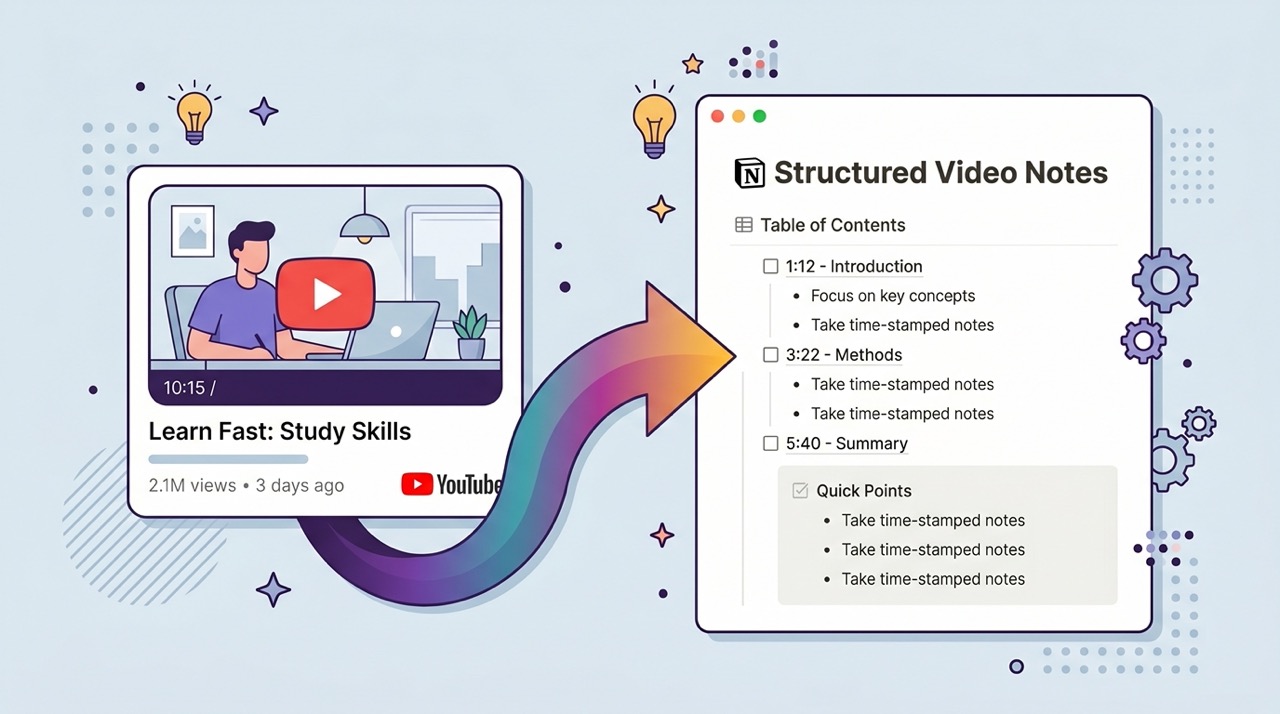
If you use Notion as your primary knowledge management system, you have probably already noticed the friction. You watch a useful YouTube video. You want to save the key points. So you open Notion in a new tab, create a page, switch back to YouTube, pause the video, write a rough summary from memory, realize you missed something, switch back to YouTube, rewind, switch back to Notion, continue writing. Repeat until either the notes are complete or your patience runs out — whichever comes first.
The result is usually a page in Notion that contains a YouTube URL, three bullet points written in haste, and a vague intention to "come back and finish these notes later." That page joins the dozens of similar pages in your database that document good intentions rather than actual knowledge.
The problem is not Notion. It is the absence of a direct connection between where the video content lives and where your knowledge base lives. Every manual step between watching and saving is a step where information gets lost, simplified, or simply abandoned.
This guide covers how to set up a direct, one-click export from any YouTube video summary to your Notion workspace — what gets exported, what the result looks like, how to organize it, and how to make the workflow sustainable across hundreds of videos over time.
Why Notion Users Love Capturing YouTube Content
Notion has become the knowledge management tool of choice for a specific kind of learner and knowledge worker — someone who thinks systematically about how information is organized, connected, and retrieved. For this person, YouTube is an enormous source of valuable content that has always been frustratingly difficult to integrate into a structured knowledge system.
The core tension is format. Notion is built around text — pages, databases, properties, linked references, and structured content that can be searched, filtered, and connected. YouTube is built around video — linear, time-based, not directly searchable, and not easily referenceable. A Notion page can link to a YouTube URL, but linking to a video is not the same as capturing its content. You cannot search the words spoken in a video from within Notion. You cannot filter your YouTube learning by topic, date, or relevance the way you can filter a database of articles or book notes.
AI-generated summaries bridge this gap. A structured summary of a YouTube video is text — it lives in Notion as naturally as a book note or an article highlight. It can be searched, tagged, linked to related pages, and filtered by any property you define. The video URL becomes a reference rather than the primary artifact. The knowledge becomes yours rather than remaining inside the platform where you encountered it.
The Manual Way: Why It Does Not Scale
Before covering the automated workflow, it is worth being specific about why manual copy-paste does not work as a long-term solution — not just because it is slow, but because of what the slowness causes.
When saving knowledge from YouTube requires significant effort, you apply an informal filter: only the videos that seem important enough to justify the effort get saved. This sounds reasonable but produces a systematic bias. Videos you are confident are valuable get saved. Videos that might be valuable — the ones you are not sure about yet, the ones from creators you have not encountered before, the ones on topics at the edge of your current knowledge — do not get saved because the uncertainty does not feel worth the effort.
The result is a Notion database that reflects what you already knew was important rather than what turned out to be important. The serendipitous captures — the video you saved on a whim that turned out to contain the exact framework you needed six months later — happen rarely because the friction filters them out.
A one-click export removes the effort threshold entirely. When saving a video summary costs one click and ten seconds, the filter disappears. You save more, and the marginal saves — the uncertain ones — turn out to be disproportionately valuable precisely because they represent genuine discovery rather than confirmation of existing knowledge.
Setting Up the Connection: What You Need
The direct Notion export in AI Summary requires two things: the AI Summary Chrome extension installed in your browser, and authorization for the extension to create pages in your Notion workspace.
Installing AI Summary takes under 30 seconds. Go to aisummary.site or search "AI Summary" in the Chrome Web Store. Click Add to Chrome. No account is required to install or use the core features.
Connecting to Notion is handled through Notion's standard OAuth authorization flow — the same process used by any tool that integrates with Notion. The first time you click Export → Notion within the AI Summary panel, you will be prompted to authorize the connection. This opens Notion's authorization page where you select which pages or databases in your workspace the extension is allowed to access. You can grant access to a specific database — your YouTube notes database, for example — rather than your entire workspace.
The authorization takes approximately one minute the first time. After that, every subsequent export is a single click.
Step-by-Step: From YouTube Video to Notion Page
Here is the complete workflow from opening a video to having a finished Notion page.
Step 1 — Open any YouTube video. Navigate to YouTube and open the video you want to capture. The AI Summary panel is visible within the YouTube interface automatically once the extension is installed.
Step 2 — Generate the summary. Click the Summarize ✨ button in the AI Summary panel. Choose your summary depth based on the video and your purpose. For a standard informational video, Normal mode produces a well-structured overview in 600 to 900 words. For a detailed lecture or technical tutorial, Long mode produces a comprehensive breakdown of 1,200 to 2,000 words. The summary generates in under 60 seconds for most videos.
Step 3 — Review the output. Read through the generated summary. For videos where specific technical accuracy matters — coding tutorials, scientific explanations, financial information — verify key points against the video using the timestamps before exporting. The timestamps in the summary are clickable links that jump directly to the relevant moment in the video.
Step 4 — Click Export → Notion. In the AI Summary panel, click the Export button and select Notion from the options. If this is your first export, complete the one-time authorization. If you have already authorized, the export proceeds immediately.
Step 5 — Select the destination. Choose which Notion database or page the summary should be exported to. If you have a dedicated YouTube notes database, select it here. If you prefer to export to a general inbox page for processing later, select that instead.
Step 6 — Done. The export completes in seconds. A new page appears in your selected Notion location containing the full summary content, structured and ready to read.
Total time from opening the video to having a complete Notion page: under two minutes for most videos.
What Gets Exported
Understanding exactly what the export contains helps you build your Notion database structure appropriately.
A standard AI Summary export to Notion includes the following elements.
Video metadata appears at the top of the page: the video title, the channel name, the YouTube URL as a clickable link, and the date the export was created. This metadata makes the page immediately identifiable in a database view and ensures you can always return to the original video.
The structured summary forms the main body of the page. The format varies by summary depth. Normal mode produces a set of clearly labeled sections with the key points from each part of the video. Long mode produces a more detailed breakdown with sub-points, supporting evidence, and the logical flow of the argument. Both formats use Notion's native heading and bullet point formatting — the content looks like it was written directly in Notion rather than imported from an external tool.
Timestamped references appear within the summary content where relevant, formatted as text references to specific moments in the video. These allow you to cross-reference the summary against the source video when needed.
The video URL is preserved as a page property, making it possible to build a Notion database view that shows thumbnails or embeds for your saved videos alongside the summary content.
What the Resulting Notion Page Looks Like
The exported page opens in Notion as a standard page — no special formatting, no embedded iframes, no external dependencies. The content is native Notion markup that you can edit, comment on, and link from other pages exactly as you would with anything else in your workspace.
A typical exported page for a 30-minute educational video looks like this: a title at the top matching the video title, a properties section showing the source URL, date, and any tags you add manually, followed by the structured summary in three to five sections with clear headings, key points in bullet format within each section, and a final section with the overall conclusion or main takeaway from the video.
The page is immediately usable as a reference document. You can add your own notes and reactions in a different color or text style, link it to related pages in your knowledge base using Notion's bidirectional linking, add it to a filtered database view alongside related content, and search for it by any word that appears in the summary using Notion's full-text search.
How to Organize Your YouTube Notes in Notion
The export creates the page. How you organize those pages over time determines whether your YouTube knowledge base becomes a genuinely useful resource or another collection of pages you never return to.
Database structure is the foundational decision. A dedicated YouTube Notes database with consistent properties works better than saving YouTube exports to random locations in your workspace. Useful properties to include: Source URL, Channel Name, Date Watched, Topics (multi-select), Status (To Review / Reviewed / Reference), and a Rating property for your own assessment of the content's value.
A topic tagging system transforms a flat list of video notes into a navigable knowledge base. Define your topic tags before you start saving — broad categories like Technology, Business, Science, Productivity, Design — and apply them consistently. A database filtered by topic gives you an instant reading list on any subject you have been learning about.
A processing inbox workflow addresses the problem of exports that accumulate faster than you process them. Create a Notion page called YouTube Inbox and set it as the default export destination. Once a week, go through the inbox, add topic tags, write a one-sentence personal note on each page, and move it to your main database. This separates the capture step from the processing step, which makes both more sustainable.
Linked references to related notes are where the real value of a knowledge management system materializes. When you export a YouTube summary on a topic you have been studying, open the related notes in your Notion database and add bidirectional links. The video summary on machine learning fundamentals links to your notes from the machine learning course you completed last year. The connection creates context that makes both notes more useful than either is alone.
Other Export Options
Notion is the most powerful export destination for users with an established knowledge management workflow, but AI Summary supports several other options that may suit different situations better.
Google Docs export creates a new document in your Google Drive with the full summary content. This is useful when you need to share the summary with collaborators, when you prefer Google's commenting and suggestion features for annotation, or when the summary is part of a larger document you are already building in Docs. The Google Doc formatting preserves headings, bullet points, and structure in a way that makes the export immediately shareable.
PDF export produces a formatted, downloadable PDF of the summary with full Unicode and Cyrillic support — reliable for any language content. Useful for offline reference, printing, and sharing with people who are not in your Notion or Google Docs workspace.
DOC export creates a Microsoft Word compatible file. Useful for users working in organizational contexts where Word is the standard document format.
TXT export produces a plain text file with no formatting. The most portable option — compatible with any text editor, note-taking application, or knowledge management tool that accepts plain text input.
Frequently Asked Questions
Does the Notion integration require a paid Notion plan? No. The export works with Notion's free plan. The only requirement is a Notion account, which is free to create.
What permissions does AI Summary request when connecting to Notion? The extension requests permission to create pages in the specific databases or pages you select during authorization. It does not request access to your full workspace. You can revoke the connection at any time through Notion's Connected Apps settings.
Can I export to multiple Notion workspaces? The extension connects to one Notion account at a time. If you have multiple Notion workspaces, you can disconnect and reconnect to switch between them, but simultaneous connection to multiple workspaces is not currently supported.
Will the export include the video's thumbnail image? The current export includes text content and metadata. Video thumbnails are not embedded in the Notion page by default, but the YouTube URL in the page properties allows Notion to display a link preview with the thumbnail when you view the page in certain database layouts.
What happens if I export the same video twice? Each export creates a new page. There is no automatic duplicate detection. If you export the same video multiple times, you will have multiple pages for that video in your Notion database. The simplest solution is to check your database before exporting if you are unsure whether you have already captured a video.
Can I customize the format of what gets exported? The current export uses the structured format generated by the AI summary. Custom export templates — defining exactly which elements appear and in what order — are a feature on the AI Summary development roadmap.
Conclusion
The gap between watching something valuable on YouTube and having that value permanently accessible in your knowledge base has always been filled with manual effort — the copy-paste cycle that most people do occasionally, inconsistently, and with diminishing returns over time.
One-click Notion export closes that gap. The workflow described in this guide — open video, generate summary, click export — takes under two minutes and produces a fully formatted, immediately useful Notion page that lives in your knowledge base as naturally as anything you wrote there directly.
The compounding effect of this over time is significant. A year of consistent YouTube capture — fifty videos, a hundred videos, two hundred videos — produces a searchable, connected body of knowledge that reflects your actual learning across a year of video consumption. That body of knowledge is retrievable when you need it, linkable to new learning as you encounter it, and genuinely yours in a way that YouTube watch history never is.
AI Summary's one-click Notion export is available in the free tier — install the extension at aisummary.site, open any YouTube video, and export your first summary to Notion in under two minutes.
Previously: 5 Chrome Extensions That Make YouTube Actually Useful for Learning ← · Next read: YouTube for Students: How to Turn Any Lecture Into a Study Guide →
Related: How to Export YouTube Summaries to Google Docs Automatically · The Ultimate Guide to YouTube Productivity: Watch Less, Learn More