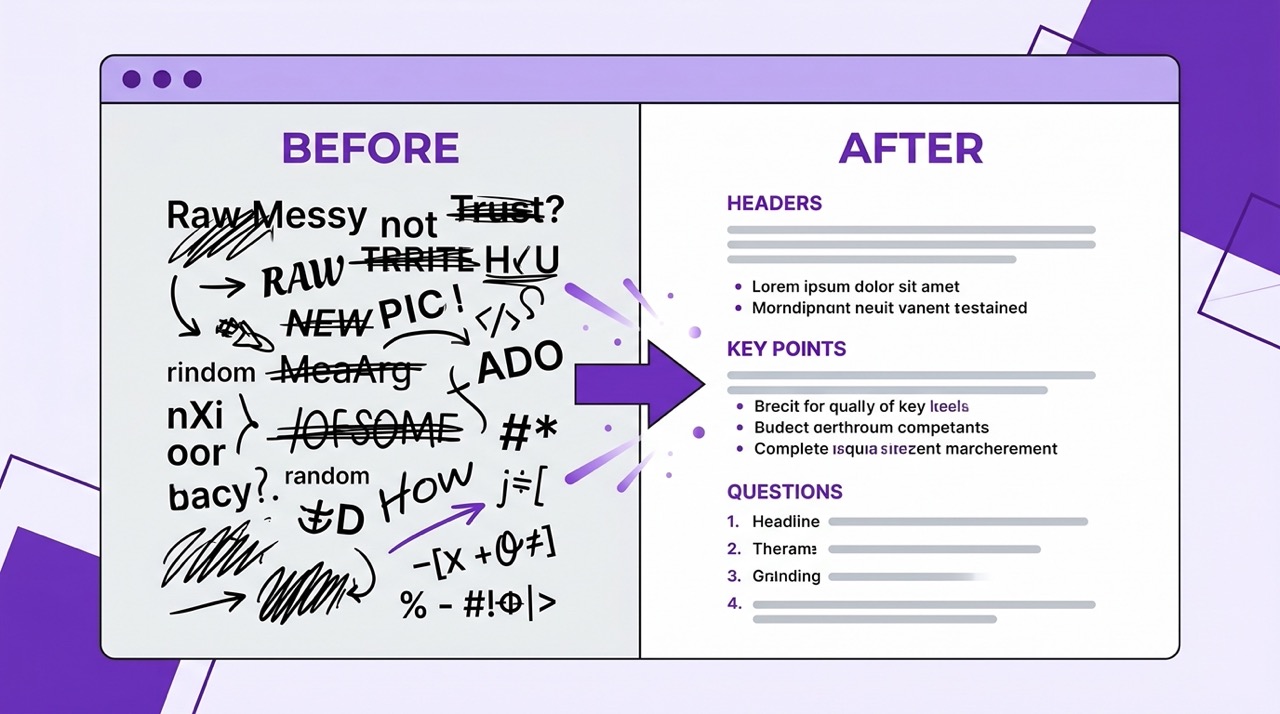
Every YouTube video with captions has a hidden text layer sitting underneath it — a complete word-for-word record of everything said in the video, with timestamps attached to every line. Most viewers have never seen it. Most of those who have seen it closed it immediately because it looked like this:
"So today were gonna be talking about uh the main concepts behind machine learning and i want to start with something that i think a lot of people get confused about which is the difference between supervised and unsupervised learning so if you think about it from a high level"
No punctuation. No paragraph breaks. Every filler word intact. A wall of text that contains genuinely valuable information wrapped in a format that makes it nearly impossible to use.
This guide covers three methods for accessing the YouTube transcript, explains exactly why the native version falls short for most real-world uses, and shows how AI transcript cleaning transforms that raw text into something you can actually read, search, annotate, and share. By the end, you will have a clear picture of which approach fits your situation — and what becomes possible when you treat video content as readable text.
What Is a YouTube Transcript and Why Does It Matter?
A YouTube transcript is the complete text version of a video's spoken content, generated either manually by the creator or automatically by YouTube's speech recognition system. Every timestamp, every sentence, every word — converted into text and stored alongside the video.
The transcript exists for several reasons. Accessibility legislation in many countries requires that video content be available in text form for deaf and hard-of-hearing viewers. YouTube's search algorithm uses transcript text to understand what a video is about and index it for relevant queries. Creators use transcripts to generate subtitles in multiple languages.
For viewers, the transcript represents something more immediately useful: a way to interact with video content as if it were a document. You can search for a specific word or phrase. You can read faster than a speaker talks. You can copy a key passage. You can translate the content. You can summarize it.
The catch is that the raw transcript, particularly the auto-generated version, needs work before it becomes genuinely useful. Understanding why — and what to do about it — is the core of this guide.
Method 1 — The Native YouTube Transcript
YouTube makes the transcript of any captioned video available for free, directly in the browser. Most users never discover it because it is not prominently featured in the interface — but it takes less than ten seconds to access once you know where to look.
How to access it step by step
Step 1: Open any YouTube video in your browser. The video must have captions enabled — look for the CC button in the video controls. If it is present, the transcript is available.
Step 2: Below the video, find the three-dot menu icon (•••) next to the Save button. Click it.
Step 3: Select "Open transcript" from the dropdown menu that appears.
Step 4: A panel opens on the right side of the screen showing the full transcript text with timestamps. Each line corresponds to a few seconds of video content.
Step 5: Click any line in the transcript to jump directly to that moment in the video. This alone — using the transcript as a clickable table of contents — is useful even before you do anything else with the text.
Step 6: To copy the full text, click the three-dot menu inside the transcript panel and select "Toggle timestamps" to remove them if you want clean text. Then select all the text in the panel and copy it.
What you get
The native transcript gives you the raw spoken content with timestamps. For videos with manually created captions — relatively rare, but present on professional channels and educational content — the quality is good. Sentences are punctuated. Paragraphs are structured. The text is readable.
For the vast majority of YouTube videos, however, the captions are auto-generated by YouTube's speech recognition. And this is where the limitations become significant.
The Honest Limitations of the Native Transcript
Auto-generated YouTube transcripts are technically impressive. Speech recognition has improved dramatically and the word accuracy rate on clear audio is very high. But accuracy at the word level is not the same as readability at the document level.
No punctuation. Auto-generated transcripts contain no periods, commas, question marks, or any other punctuation. Every sentence runs into the next. A 20-minute video produces a single unbroken stream of words.
No paragraph structure. The transcript is divided into short chunks of two to four words each, based entirely on timing rather than meaning. Ideas that belong together are fragmented. Transitions between topics are invisible.
Filler words throughout. "Um," "uh," "you know," "like," "kind of," "sort of," "basically" — all present in full. A casual conversational speaker might produce 50 to 100 filler words in a 10-minute video. They all appear in the transcript.
Speaker errors intact. False starts, repeated words, mid-sentence corrections — everything the speaker said, including the things they wish they hadn't, appears verbatim.
No speaker identification. In multi-person videos, interviews, or panel discussions, the transcript gives you no indication of who is speaking. All voices merge into a single undifferentiated text stream.
The result is a document that contains everything you need and is structured in a way that makes it extremely difficult to extract. For occasional word searches, it is adequate. For reading, studying, or sharing — it is not.
Method 2 — Copy, Paste, and Clean Manually
The obvious next step after accessing the native transcript is to copy the text and clean it up manually in a text editor or word processor. For many users, this is the default approach.
How it works
Copy the full transcript text from the YouTube panel, paste it into Google Docs, Microsoft Word, or a plain text editor, and then work through it: add punctuation, break it into paragraphs, remove filler words, fix obvious errors.
When it is worth doing
For short videos — under five minutes — manual cleaning is feasible. The text volume is small enough that 10 to 15 minutes of editing produces a readable document.
For specific passages rather than a full transcript, it also works well. If you need the exact wording of one section of a longer video, copy that section, clean it up, and you are done.
The honest downside
For anything over five minutes, the time investment becomes significant. A 30-minute video produces roughly 4,000 to 5,000 words of raw transcript text. Properly punctuating, paragraphing, and cleaning that text takes 45 minutes to an hour — longer than watching the video in the first place.
There is also a skill and attention dimension. Punctuating speech accurately requires listening to the original audio alongside the text, because the transcript alone does not tell you where sentences begin and end. Many manual cleaning attempts result in a document that is better than the raw transcript but still not genuinely readable.
For most real-world use cases, manual cleaning is a temporary workaround rather than a sustainable workflow.
Method 3 — AI-Cleaned Transcript (Best Quality)
The third method uses an AI language model to perform the cleaning automatically — adding punctuation, restructuring into paragraphs, removing filler words, and correcting obvious transcription errors — in seconds rather than minutes.
How it works
The raw transcript text is passed to an AI model with instructions to clean and reformat it while preserving the original meaning. The model applies standard punctuation rules, groups related sentences into paragraphs, removes filler words, and handles speaker corrections by keeping only the intended version of each statement.
The output is a document that reads as if a professional transcriptionist had manually produced it — proper sentences, logical paragraphs, clean prose.
The result in practice
Here is the same passage before and after AI cleaning:
Raw auto-generated transcript: "so today were gonna be talking about uh the main concepts behind machine learning and i want to start with something that i think a lot of people get confused about which is the difference between supervised and unsupervised learning so if you think about it from a high level supervised learning is basically when you have labeled data so you know what the right answer is and the model learns from that"
After AI cleaning: "Today we're going to cover the main concepts behind machine learning. I want to start with something that confuses many people: the difference between supervised and unsupervised learning. At a high level, supervised learning is when you have labeled data — you know what the correct answer is, and the model learns from that."
Same information. Completely different readability. The cleaned version is something you can share with a colleague, add to a research document, or use as study material. The raw version is not.
Using the Clean Transcript feature in AI Summary
The AI Summary Chrome extension includes a dedicated Clean Transcript feature that handles this process with one click, directly inside YouTube. Open any video, navigate to the transcript tab within the extension panel, and the cleaned version is generated automatically — properly formatted, punctuated, and ready to read or export.
You can then export the clean transcript to Notion, Google Docs, or download it as a PDF, DOC, or TXT file. For a 30-minute lecture, the entire process — from opening the video to having a clean, exportable transcript — takes under two minutes.
Five Real-World Use Cases for YouTube Transcripts
Understanding how to get a clean transcript is one thing. Knowing what to do with it is another. Here are the five most valuable ways people use YouTube transcripts in practice.
1. Study notes and exam preparation
A clean transcript of a YouTube lecture is the foundation of a complete set of study notes. You can highlight key concepts, annotate passages with your own commentary, and organize the content by topic rather than by the order it was presented. Combined with an AI-generated summary of the same video, you have both the overview and the detailed source material.
2. Accessibility and reading preference
Not everyone can or wants to watch video. A clean transcript makes video content available as a reading experience — useful for people with hearing impairments, people in noisy or quiet environments where audio is impractical, and people who simply read faster than speakers talk.
3. Search and reference
Once a transcript is in a document, it becomes searchable. If you have transcripts of ten videos on a topic, you can search across all of them for a specific term, concept, or name. This transforms a collection of videos into something more like a searchable database of knowledge.
4. Translation and multilingual use
A clean text document is far easier to translate accurately than raw auto-generated captions. If you need the content of a foreign-language video in your own language, a clean transcript fed into a translation tool produces significantly better results than translating the raw caption text.
5. Content creation and research
Journalists, researchers, and content creators regularly use YouTube as a source of expert statements, data points, and narrative material. A clean transcript makes it possible to find, quote, and cite specific passages accurately — the same way you would work with a written article or interview transcript.
Comparison: Three Methods at a Glance
Native YouTube transcript | Manual cleaning | AI-cleaned transcript | |
|---|---|---|---|
Time to access | 10 seconds | 10 seconds | 10 seconds |
Time to usable text | Immediate (low quality) | 45–90 min per 30-min video | Under 2 minutes |
Punctuation | None | Manual | Automatic |
Paragraph structure | None | Manual | Automatic |
Filler words removed | No | Manual | Yes |
Export options | Copy only | Any (manual) | Notion, Docs, PDF, DOC, TXT |
Best for | Quick word search | Short clips only | Everything else |
Frequently Asked Questions
Does every YouTube video have a transcript? Any video with captions — manual or auto-generated — has a transcript. YouTube auto-generates captions for the vast majority of videos in major languages. Videos with poor audio quality, heavy background noise, or uncommon languages may not have auto-generated captions. The CC button in the video controls tells you whether captions are available.
Can I get a transcript in a language different from the video? YouTube provides the transcript in the original language of the video. AI tools can then translate the cleaned transcript into any target language. AI Summary supports output in 50+ languages, so you can receive a clean transcript in your preferred language regardless of what language the video is in.
Is it legal to use YouTube transcripts? YouTube transcripts contain the spoken content of the video, which may be subject to copyright. Using transcript content for personal study, research, or accessibility is generally considered fair use in most jurisdictions. Republishing large portions of transcript content from a creator's video without permission raises different considerations. When in doubt, treat transcript content the same way you would treat a written article from the same creator.
Why does the AI cleaning sometimes make small errors? AI transcript cleaning works from the text alone, without access to the audio. When a word is transcribed incorrectly by YouTube's speech recognition — particularly with technical terminology, proper nouns, or non-native accents — the AI model works with the incorrect word. For high-stakes uses like academic citation, always verify specific passages against the original audio.
Can I clean transcripts for videos in languages other than English? Yes. AI transcript cleaning works across all major languages. The quality depends on the underlying speech recognition quality of the auto-generated captions, which varies by language. Major languages — Spanish, French, German, Portuguese, Japanese, Ukrainian — generally produce reliable results.
Conclusion
The YouTube transcript is one of the most underused tools available to anyone who consumes video content for learning, research, or professional purposes. It is free, it is available on almost every video, and it transforms passive video consumption into active document-based work.
The native version is a starting point, not a destination. Manual cleaning works for short clips and specific passages. AI-powered cleaning — available in seconds through tools like the AI Summary extension — makes the full transcript of any video into a readable, searchable, exportable document that you can work with the same way you would work with a written article.
The next time you find yourself scrubbing through a video looking for a specific moment, or rewatching a lecture to catch something you missed, consider reaching for the transcript instead. The information you need is already there, in text form, waiting to be read.
The Clean Transcript feature is built into the AI Summary Chrome extension — free to install at aisummary.site. Open any YouTube video and try it with one click.
Previously: How to Take Better Notes from YouTube Videos (The Smart Student's Guide) ← · Next read: How to Summarize Long YouTube Videos (2h+) Without Losing Key Details →
Related: How to Take Better Notes from YouTube Videos (The Smart Student's Guide) · YouTube for Students: How to Turn Any Lecture Into a Study Guide